
RetroTV transmits images only. Audio continues to play through your computer.
How it works
RetroTV has two parts:- MeowKit receives and displays the image stream.
- ScreenShotSender captures a selected area of your Windows desktop and sends it to MeowKit.
Before you start
Prepare the following:- A Windows computer
- MeowKit with RetroTV installed
- A local network with 2.4 GHz Wi-Fi
- ScreenShotSender
- MeowKit and the computer connected to the same network
Start streaming
1
Connect MeowKit to Wi-Fi.
Complete the Wi-Fi setup in Settings. Connect MeowKit and your computer to the same local network.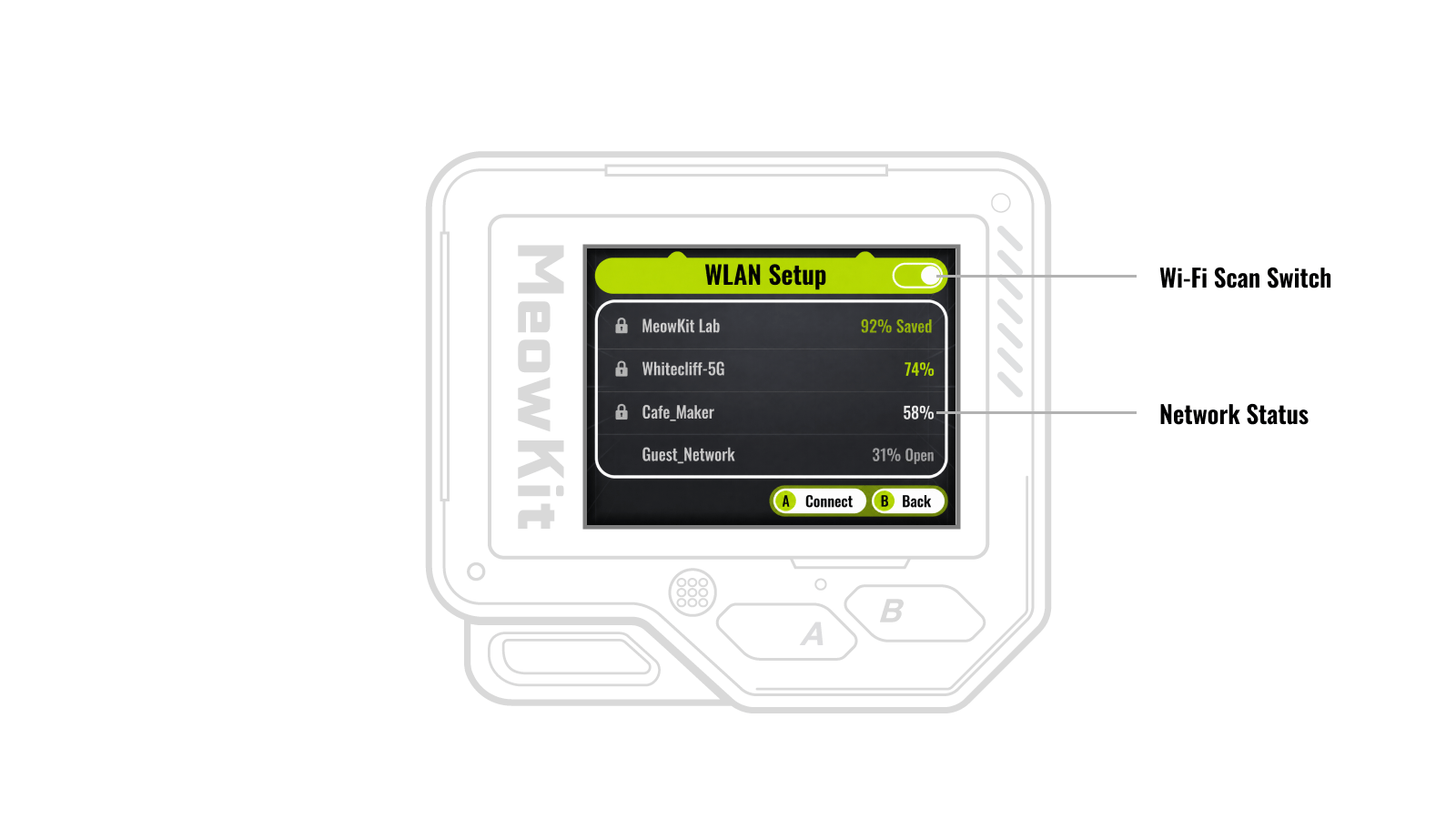
2
Open RetroTV.
Go to Applications → RetroTV. Once connected, MeowKit displays its IP address, such as 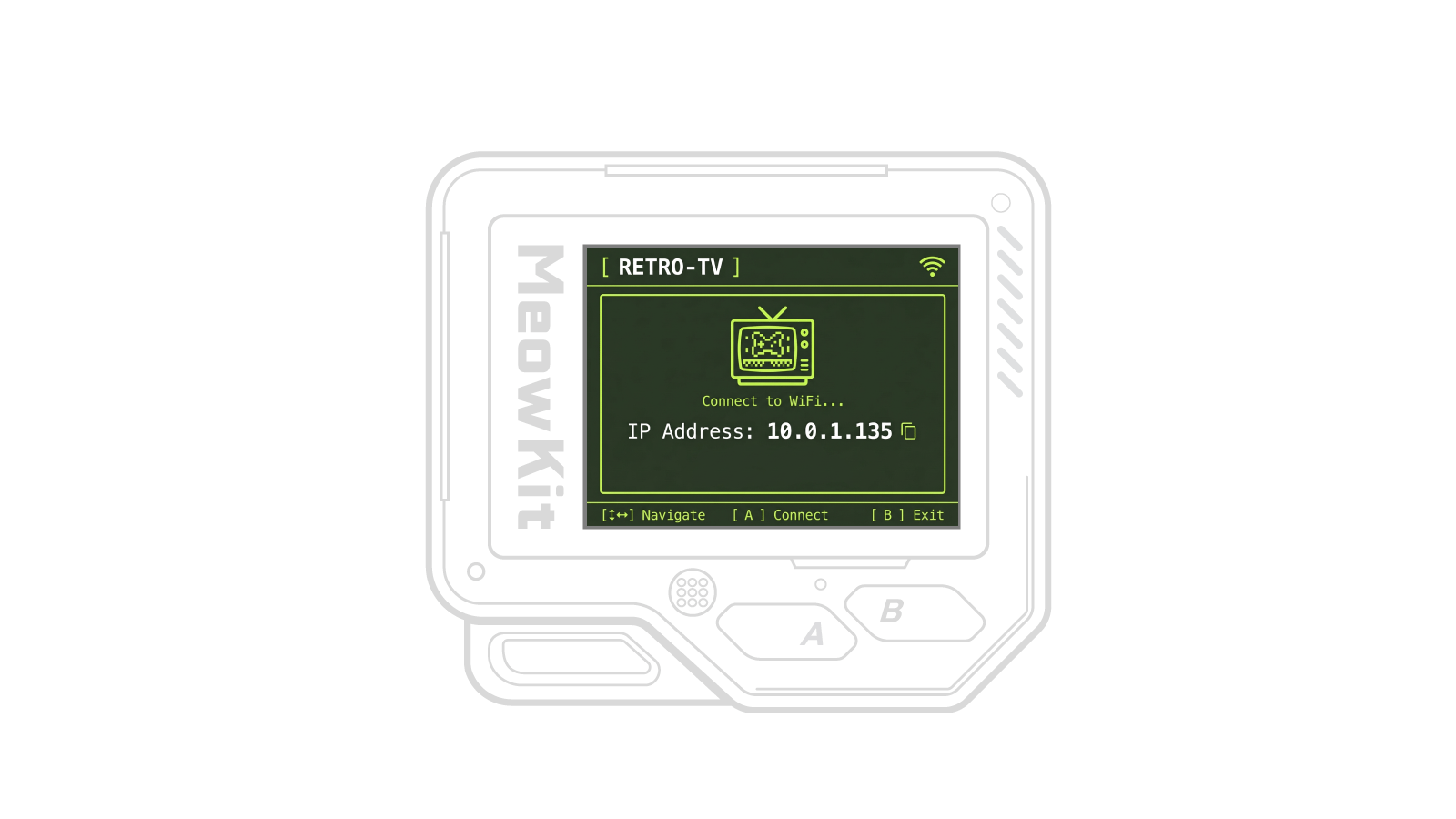
10.0.1.135.Keep this screen open.3
Download ScreenShotSender.
Download the Windows sender from the ESP32 ScreenShotReceiver repository.
4
Run ScreenShotSender.
Run 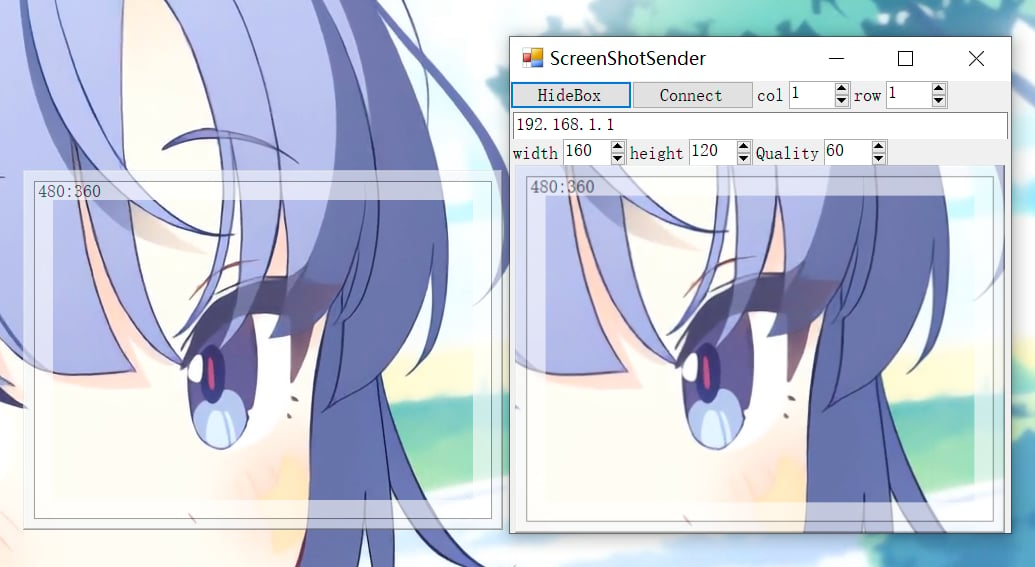
ScreenShotSender.exe.If Windows Firewall asks for permission, allow access only on your trusted Private network5
Configure the display.
Enter the IP address shown on MeowKit, then set:
- Width:
320 - Height:
240 - Quality:
60 - Col:
1 - Row:
1
6
Select the display area.
Click ShowBox, then move or resize the capture frame. Everything inside the frame will be sent to MeowKit.For the best fit, keep the capture area close to a 4:3 aspect ratio.
7
Start streaming.
Click Connect. When the button changes to Disconnect, your computer screen appears on MeowKit.When finished, click Disconnect, then press and hold MeowKit’s B button for 2 seconds to exit RetroTV.
Troubleshooting
MeowKit stays on “Connect to WiFi...”
MeowKit stays on “Connect to WiFi...”
Check that:
- Wi-Fi is configured in Settings.
- The network name and password are correct.
- The network supports 2.4 GHz Wi-Fi.
- MeowKit is within range of the router.
ScreenShotSender cannot connect
ScreenShotSender cannot connect
Confirm that:
- The IP address exactly matches the address displayed by MeowKit.
- MeowKit and the computer are on the same local network.
- RetroTV is still open on MeowKit.
- Windows Firewall allows ScreenShotSender on the current Private network.
- Your router is not using client isolation or AP isolation.
The IP address has changed
The IP address has changed
MeowKit’s IP address may change after:
- Restarting MeowKit
- Reconnecting to Wi-Fi
- Restarting the router
- Moving to another network
The image is stretched
The image is stretched
Set:
- Width to
320 - Height to
240
The image freezes or updates slowly
The image freezes or updates slowly
Try these changes in order:
- Reduce Quality.
- Select a smaller capture area.
- Move MeowKit closer to the router.
- Pause other network-intensive activity.
- Click Disconnect, then reconnect.
No audio plays from MeowKit
No audio plays from MeowKit
This is expected.RetroTV sends JPEG images only. Audio remains on the Windows computer and is not transmitted to MeowKit.
Windows displays a security warning
Windows displays a security warning
Do not disable antivirus protection or Real-time Protection.Confirm that the file came from the official upstream repository. If you cannot verify or trust the executable, do not run it; review and build the included C# source code instead.