
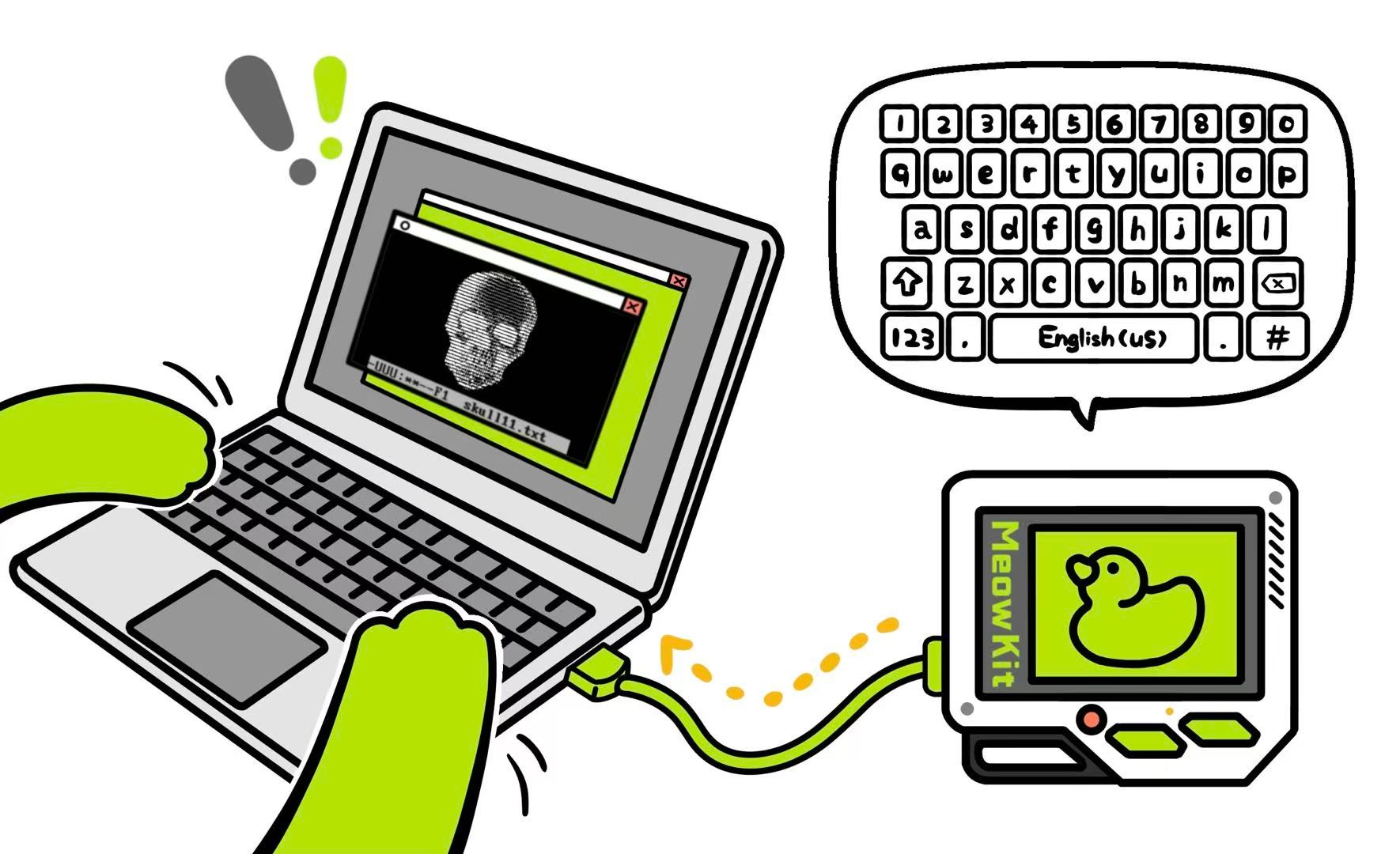
MeowKit scripting language
Create a.txt script in a plain-text editor. MeowKit supports common commands from classic DuckyScript 1.0, with additional commands for character input delays, mouse actions, and media controls. Save your scripts to /badusb/scripts/ on the SD card.
Uploading new payloads to MeowKit
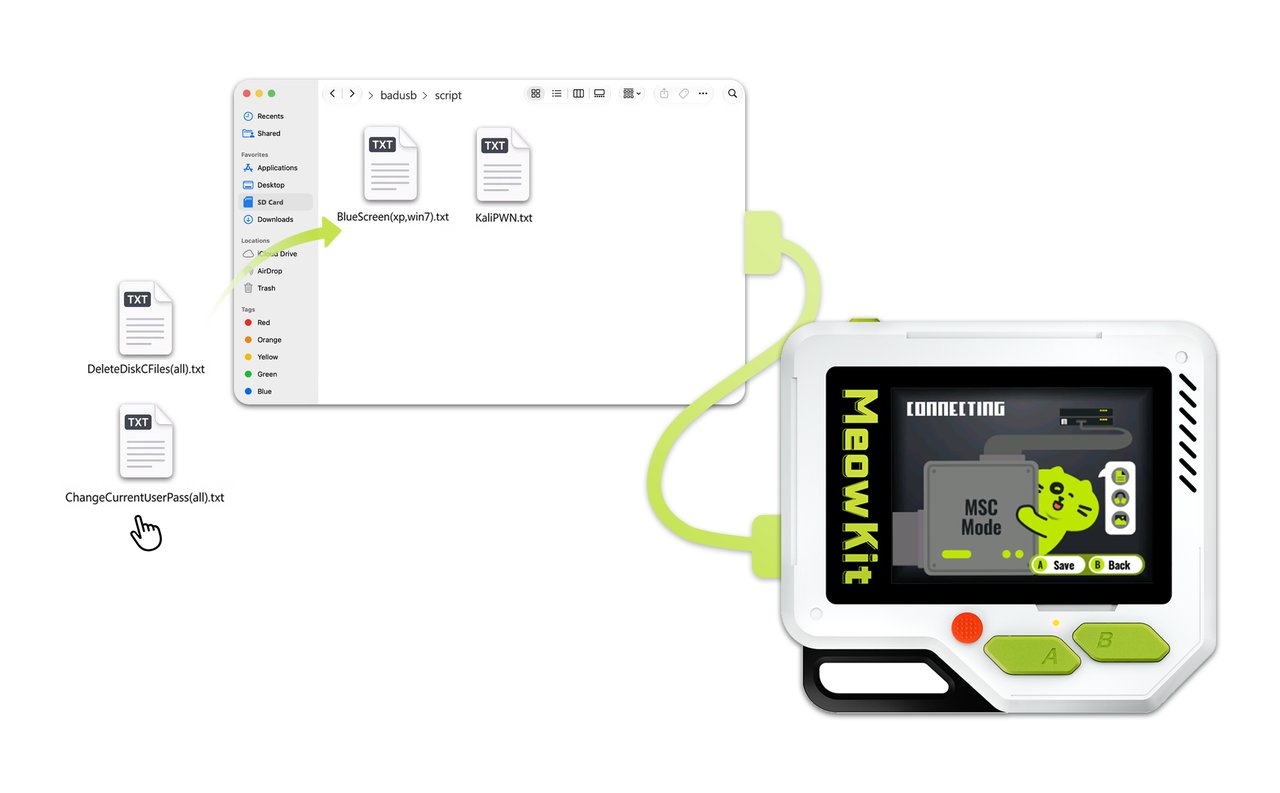
After creating your.txt script, connect MeowKit to your computer with a USB data cable. Open USB MSC in Settings, then copy the file to the drive’s /badusb/scripts/ folder.
Once the transfer is complete, safely eject the drive from your computer. On MeowKit, press A (Eject) to end USB MSC mode, then B (Back) to return. Reopen BadUSB to refresh the script list.
Using MeowKit as a BadUSB device
Via USB connection
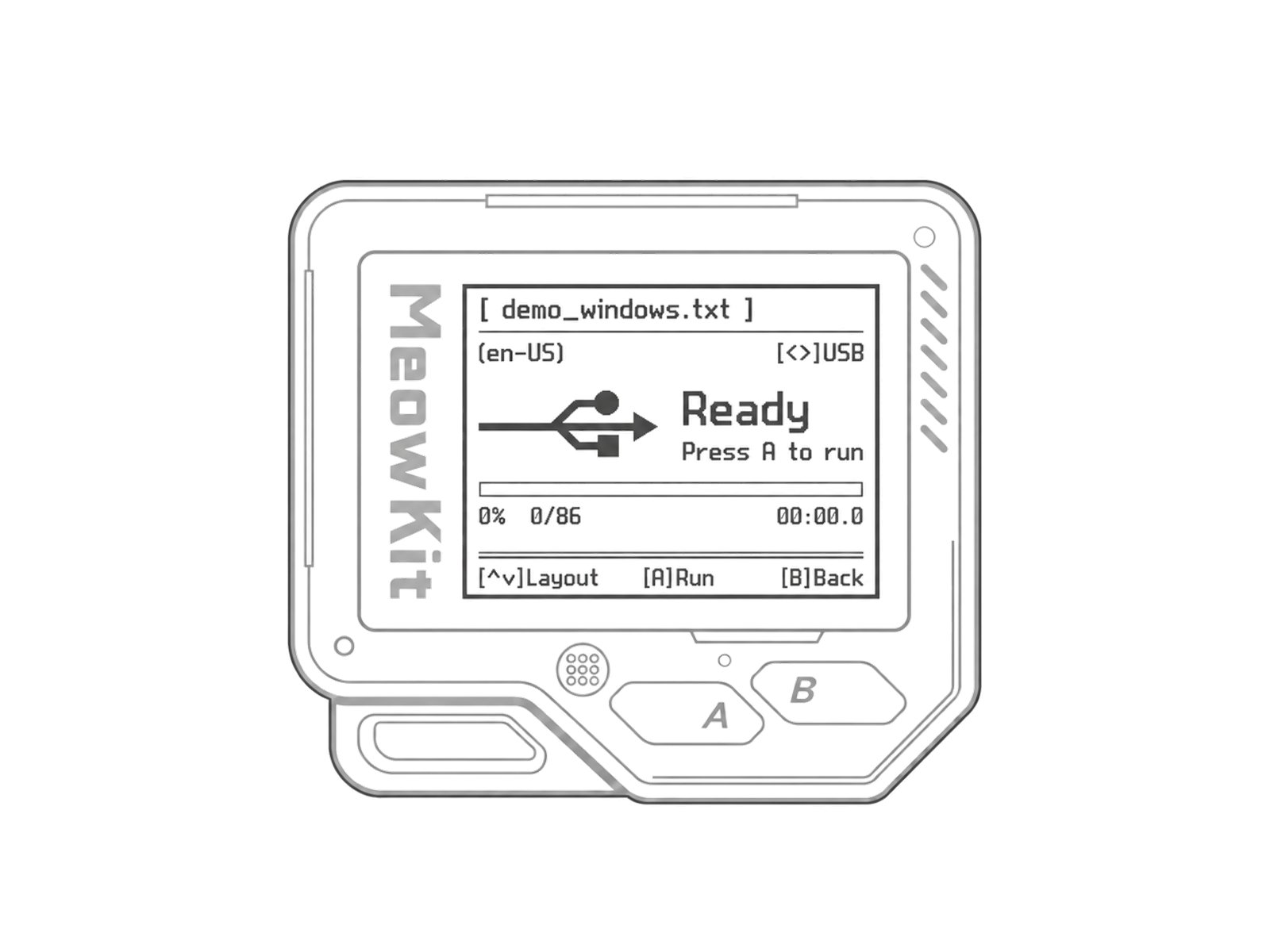
If USB MSC is active, safely eject the drive on your computer, then exit USB MSC mode on MeowKit.
On MeowKit, open Applications → BadUSB.
In the script list, move the joystick left or right to select USB.
Move the joystick up or down to select a script. Press A (Enter) to open its execution page.
If needed, move the joystick up or down to open Layout. Select the keyboard layout used on your computer, then press A (Apply). The default is en-US.
Connect MeowKit to your computer with a USB data cable. Wait for Ready on MeowKit.
Open the target application on your computer and select its input area. Press A (Run) on MeowKit to start the script.
Via BLE connection
On MeowKit, open Settings → Bluetooth and turn Bluetooth on.
Open Applications → BadUSB.
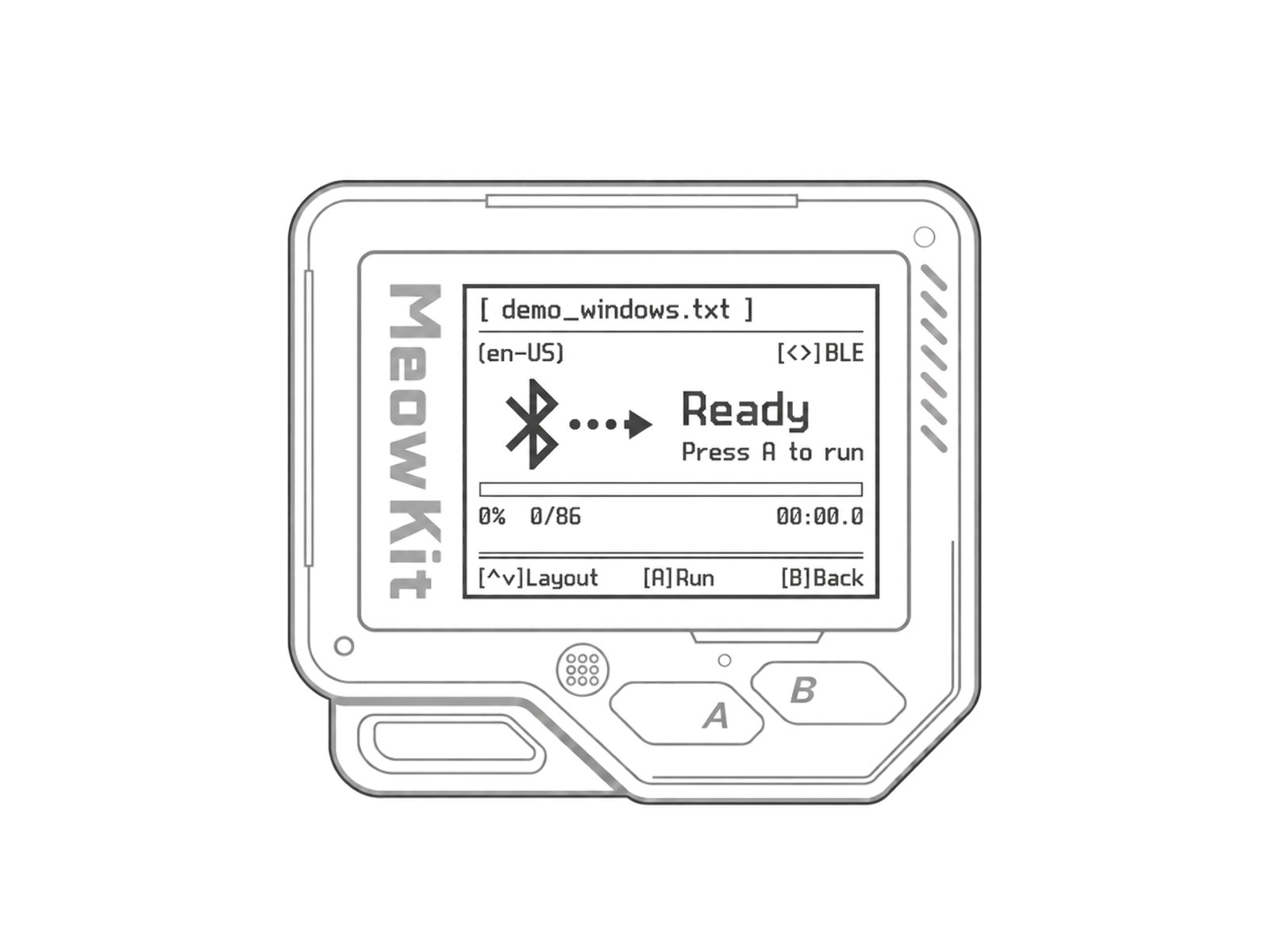
In the script list, move the joystick left or right to select BLE.
Select a script and press A (Enter). MeowKit becomes discoverable as MeowKit BadUSB when its execution page opens.
If needed, move the joystick up or down to open Layout. Select the keyboard layout used on your computer, then press A (Apply).
In your computer’s Bluetooth settings, select MeowKit BadUSB.
Complete pairing. If both devices display a six-digit PIN, check that the numbers match, then press A (Confirm) on MeowKit and confirm on your computer. If your computer asks you to enter a PIN instead, enter the code shown on MeowKit.
Wait for Ready on MeowKit.
Open the target application on your computer and select its input area. Press A (Run) on MeowKit to start the script.