
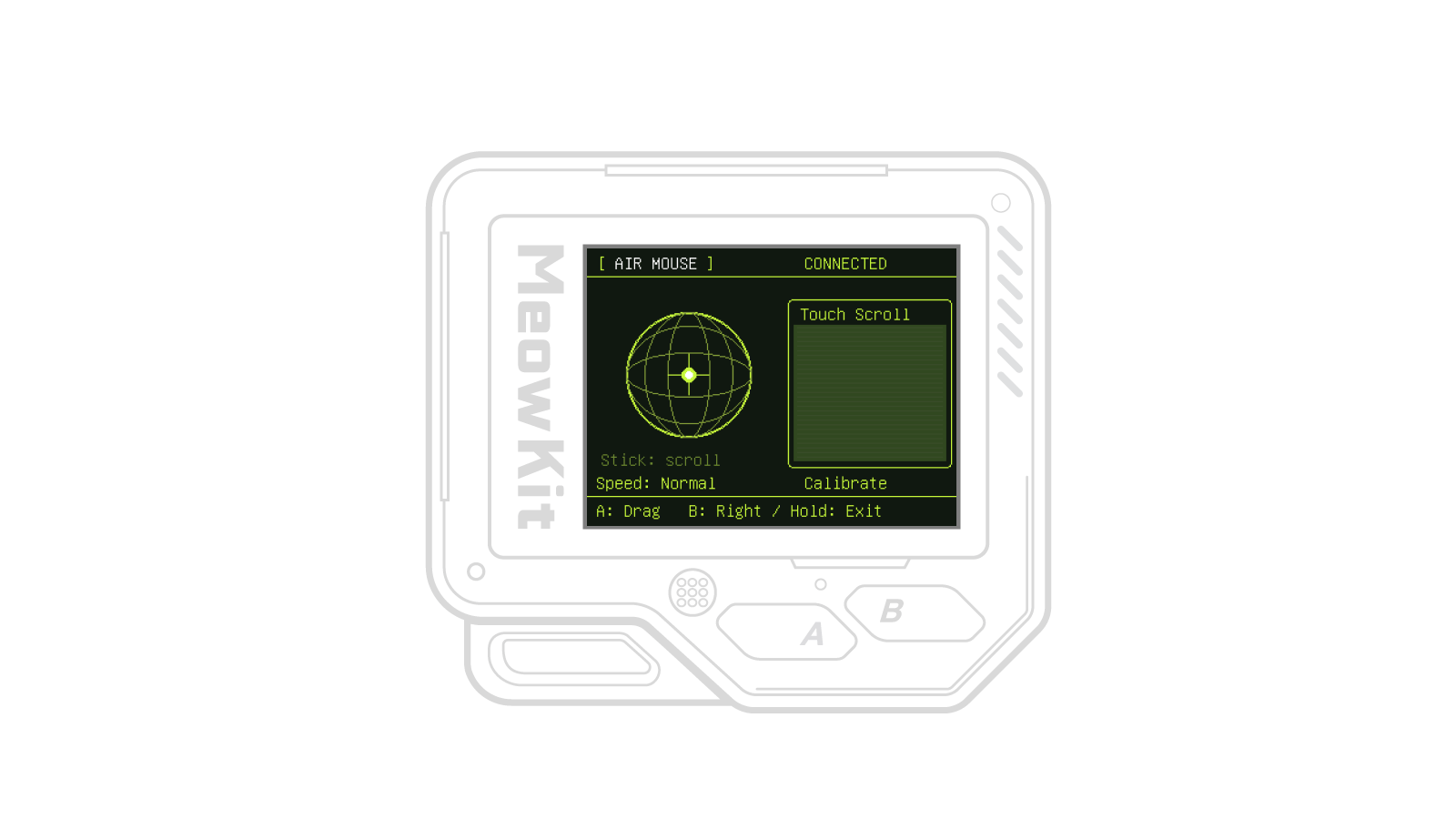
Connect to your computer
- Open Air Mouse on MeowKit.
- Place MeowKit on a stable surface and keep it still during calibration.
- Open your computer’s Bluetooth settings and select MeowKit AirMouse.
- Wait for CONNECTED to appear on MeowKit.
Click and scroll
| Control | Action |
|---|---|
| Press and release A | Left-click |
| Hold A while moving | Drag |
| Press and release B briefly | Right-click |
| Move the joystick up or down | Scroll |
| Swipe vertically in Touch Scroll | Scroll |
| Press and hold B | Exit Air Mouse |
Adjust sensitivity
Choose Low, Normal, or High to change how far the pointer moves when you rotate MeowKit. Move the joystick left or right to decrease or increase sensitivity. You can also tap Speed to cycle through the three levels. Your selection is saved automatically.Calibrate motion
Calibration helps keep the pointer steady when MeowKit is not moving. It runs each time you open Air Mouse. To recalibrate:- Place MeowKit on a stable surface.
- Tap Calibrate.
- Keep it still until KEEP STILL changes back to Calibrate.
Troubleshooting
Paired, but not responding
Check the status on MeowKit:- WAITING — waiting for a Bluetooth connection.
- PAIRING — connected, but the mouse input channel is not ready.
- CONNECTED — ready to send mouse input.
- BLE ERROR — Bluetooth could not start correctly. Exit Air Mouse and reopen it.