> ## Documentation Index
> Fetch the complete documentation index at: https://docs.meowkit.cc/llms.txt
> Use this file to discover all available pages before exploring further.
# PC Monitor
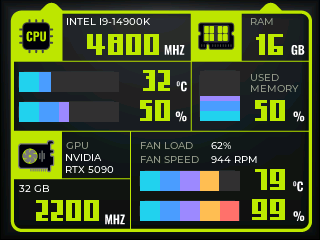 PC Monitor displays your computer's CPU and GPU temperatures and loads, along with system RAM usage, on MeowKit. Keep essential readings in view while you work or play.
# Before you start
You need a 64-bit Windows 10 or 11 PC, a USB data cable, and **HardwareSerialMonitor**. Windows 7 SP1 can run the client with .NET Framework 4.8, but it is a legacy system and has not been verified with every hardware configuration.
Download and install the v1.4.4 installer. You can also use the [MeowKit Windows package](https://github.com/mingolucky/meowkit-s3-firmware/raw/refs/heads/main/software/HardwareSerialMonitor/downloads/HardwareSerialMonitor-v1.4.4-MeowKit.zip). Extract the entire ZIP before opening `HardwareSerialMonitor.exe`.
***
# Connect MeowKit
Turn on MeowKit normally and connect it to your PC with a USB data cable.
On MeowKit, open **Apps → PC Monitor**.
Run `HardwareSerialMonitor.exe` as administrator. To make this permanent, right-click the file and select **Properties → Compatibility → Run this program as an administrator**.
Open the HardwareSerialMonitor icon in the Windows notification area. Select **Show hidden icons** if you cannot see it.
Select MeowKit's COM port. Wait a few seconds for the readings to appear.
***
# Read the screen
The top-left panel shows the CPU model, clock speed, temperature, and load. The top-right panel shows total RAM and the percentage in use. The lower panel shows GPU details, including temperature, load, clock speed, VRAM, and available fan readings.
The meters update as MeowKit receives data from your PC. `--` means the Windows client has not supplied a usable reading for that field. Sensor availability depends on your hardware and the Windows client.
Press and hold **B** to leave PC Monitor.
***
# If readings do not appear
Check the USB data cable and the COM port selected in HardwareSerialMonitor. Close any serial monitor using that port. If you reconnect MeowKit, Windows may assign it a different COM port; select the new port in the client.
If data stops arriving, MeowKit clears the old readings after five seconds. The display updates again when valid data returns.
***
PC Monitor displays your computer's CPU and GPU temperatures and loads, along with system RAM usage, on MeowKit. Keep essential readings in view while you work or play.
# Before you start
You need a 64-bit Windows 10 or 11 PC, a USB data cable, and **HardwareSerialMonitor**. Windows 7 SP1 can run the client with .NET Framework 4.8, but it is a legacy system and has not been verified with every hardware configuration.
Download and install the v1.4.4 installer. You can also use the [MeowKit Windows package](https://github.com/mingolucky/meowkit-s3-firmware/raw/refs/heads/main/software/HardwareSerialMonitor/downloads/HardwareSerialMonitor-v1.4.4-MeowKit.zip). Extract the entire ZIP before opening `HardwareSerialMonitor.exe`.
***
# Connect MeowKit
Turn on MeowKit normally and connect it to your PC with a USB data cable.
On MeowKit, open **Apps → PC Monitor**.
Run `HardwareSerialMonitor.exe` as administrator. To make this permanent, right-click the file and select **Properties → Compatibility → Run this program as an administrator**.
Open the HardwareSerialMonitor icon in the Windows notification area. Select **Show hidden icons** if you cannot see it.
Select MeowKit's COM port. Wait a few seconds for the readings to appear.
***
# Read the screen
The top-left panel shows the CPU model, clock speed, temperature, and load. The top-right panel shows total RAM and the percentage in use. The lower panel shows GPU details, including temperature, load, clock speed, VRAM, and available fan readings.
The meters update as MeowKit receives data from your PC. `--` means the Windows client has not supplied a usable reading for that field. Sensor availability depends on your hardware and the Windows client.
Press and hold **B** to leave PC Monitor.
***
# If readings do not appear
Check the USB data cable and the COM port selected in HardwareSerialMonitor. Close any serial monitor using that port. If you reconnect MeowKit, Windows may assign it a different COM port; select the new port in the client.
If data stops arriving, MeowKit clears the old readings after five seconds. The display updates again when valid data returns.
***